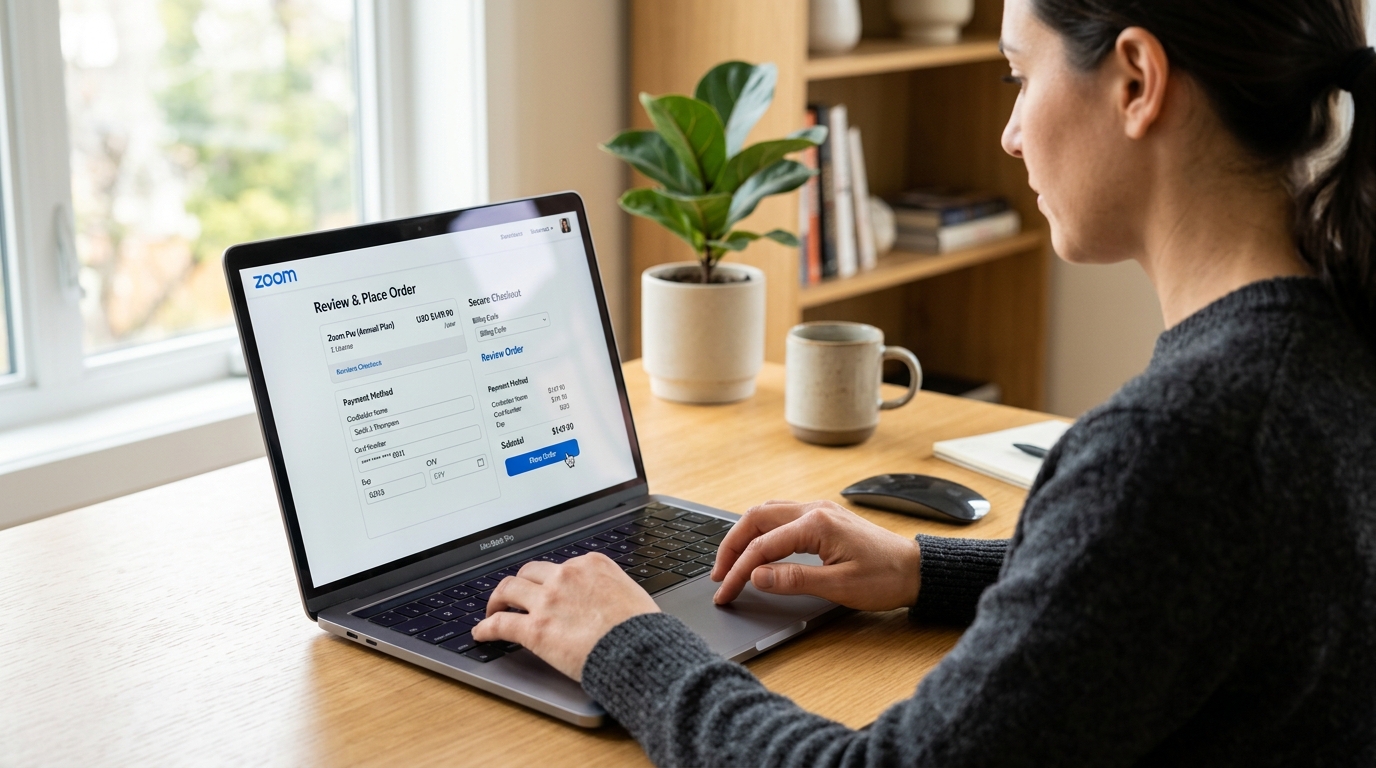
Using a Zoom coupon code is straightforward when you have a valid promotional offer. Zoom allows eligible customers to apply coupons when upgrading from a free or Basic account, purchasing as a new user, or renewing a subscription.
The exact location of the coupon field can depend on your account status and the current Zoom billing interface. Before completing your purchase, make sure the code applies to your selected product and subscription period.
If you have a valid Zoom promotional coupon, you can usually apply it when purchasing a paid plan or upgrading from a free Basic account. Existing paid customers may also be able to add eligible coupons through the Zoom billing portal.
Zoom also provides discounts for verified nonprofit organizations on selected products.
Zoom Promo Code: Get Free Gift on Zoom Workplace Pro Monthly

What You Need Before Applying a Zoom Discount
Before adding a promotional coupon, make sure you have:
- A Zoom Basic, Pro, or Business account, depending on the offer.
- Account owner, administrator, or billing permissions.
- A valid promotional coupon or discount offer.
- A product or plan that qualifies for the promotion.
Keep in mind that individual coupon terms can vary. Some offers may have restrictions on eligible plans, products, users, or redemption periods.
How to Apply a Zoom Coupon Code
The steps can differ depending on whether you are creating a new account, upgrading from a free plan, or already have a paid Zoom subscription.
Applying a Coupon When Creating a New Zoom Account
If you are new to Zoom and want to purchase a paid subscription using a promotional code:
- Go to Zoom's Plans and Pricing page and choose your plan, number of licenses, and subscription option.
- Continue through the account-creation process.
- Enter your billing and payment information.
- Continue to the order review page.
- Find the Order Summary section and enter your coupon code.
- Select Add to apply the code.
- Review the order details and terms.
- Complete the purchase.
If the coupon is valid for the selected plan, the applicable discount should appear during checkout.

- Explore More: Zoom Coupon Codes, Discounts & Ways to Save
Applying a Coupon When Upgrading From Zoom Basic
If you already use Zoom's free Basic plan and want to move to a paid plan:
- Sign in to your Zoom account.
- Open Plans and Billing and select Plan Management.
- Choose the available upgrade option, such as Upgrade to Pro.
- Select your subscription details and continue to checkout.
- Enter your billing and payment information.
- Continue to the order review screen.
- Select Add Coupon Code.
- Enter your promotional code and choose Add.
- Review the updated order and complete the purchase.
The discount should be reflected in the order details if the code is eligible for your selected subscription.
Applying a Coupon to an Existing Paid Zoom Account
Existing paid customers may be able to add eligible promotional coupons through the Zoom billing portal. This can apply to certain partner promotions and marketing offers.
To add a coupon:
- Sign in to the Zoom web portal.
- Open Plans and Billing and go to Plan Management.
- Locate the Coupons section below your plan information.
- Select Add.
- Enter the promotional coupon code and select Add.
- Follow the checkout instructions to confirm the coupon.
- Complete the required order steps.
Your available billing options may look different depending on your account setup.
Does Zoom Offer Nonprofit Discounts?
Yes. Zoom provides discounts to eligible nonprofit organizations on selected Zoom products. Organizations generally need to complete the required verification process before receiving nonprofit pricing.
If you represent a nonprofit, check Zoom's current nonprofit program requirements before purchasing so you can confirm whether your organization and selected product qualify.
Can You Add Another Zoom Coupon for Later?
Zoom may allow up to two coupons to be associated with an account at the same time. When two coupons are available, one can be active while another remains pending.
A pending coupon can become active after the current coupon expires, subject to the applicable terms.
To add another eligible coupon:
- Sign in to the Zoom web portal.
- Go to your billing or plan management area.
- Find the Coupons section.
- Select Add.
- Enter the new coupon code.
- Follow the instructions shown in your account.
The exact options available can depend on your account and the type of coupon.

Explore More: Zoom Nonprofit Discount: Eligibility and How to Apply
Important Things to Know About Zoom Coupon Codes
Before trying a Zoom coupon, check its terms carefully. A promotional code may have restrictions based on the plan, product, account type, or promotional period.
A few important points:
- Check the expiration date: An expired code generally cannot be redeemed.
- Review eligibility: Some coupons work only with specific Zoom products or plans.
- Check the offer source: If you received the code from a partner or promotional campaign, review the conditions provided with the offer.
- Already completed your purchase? A discount may not always be added after a paid subscription has been purchased and could instead be considered for a later billing period.
- Some Zoom offers use special links: Certain promotions may require you to click the promotional link provided in an email so the discount is automatically applied during checkout.
- Coupons may not be stackable: Previously applied promotional discounts may prevent another discount from being added or exchanged on the same account.
- Account Executive purchases: If your Zoom subscription was arranged through a dedicated Account Executive, contact them about available discount options.
Bottom Line
Applying a Zoom coupon is generally easiest during checkout when you are purchasing a new subscription or upgrading from a Basic account. Existing paid customers can check their billing portal for a Coupons section and add an eligible offer when supported.
Because Zoom promotions can have different eligibility rules and expiration dates, always verify the coupon's terms before completing your purchase.